Add Cross App Access to Your OIDC Resource Application

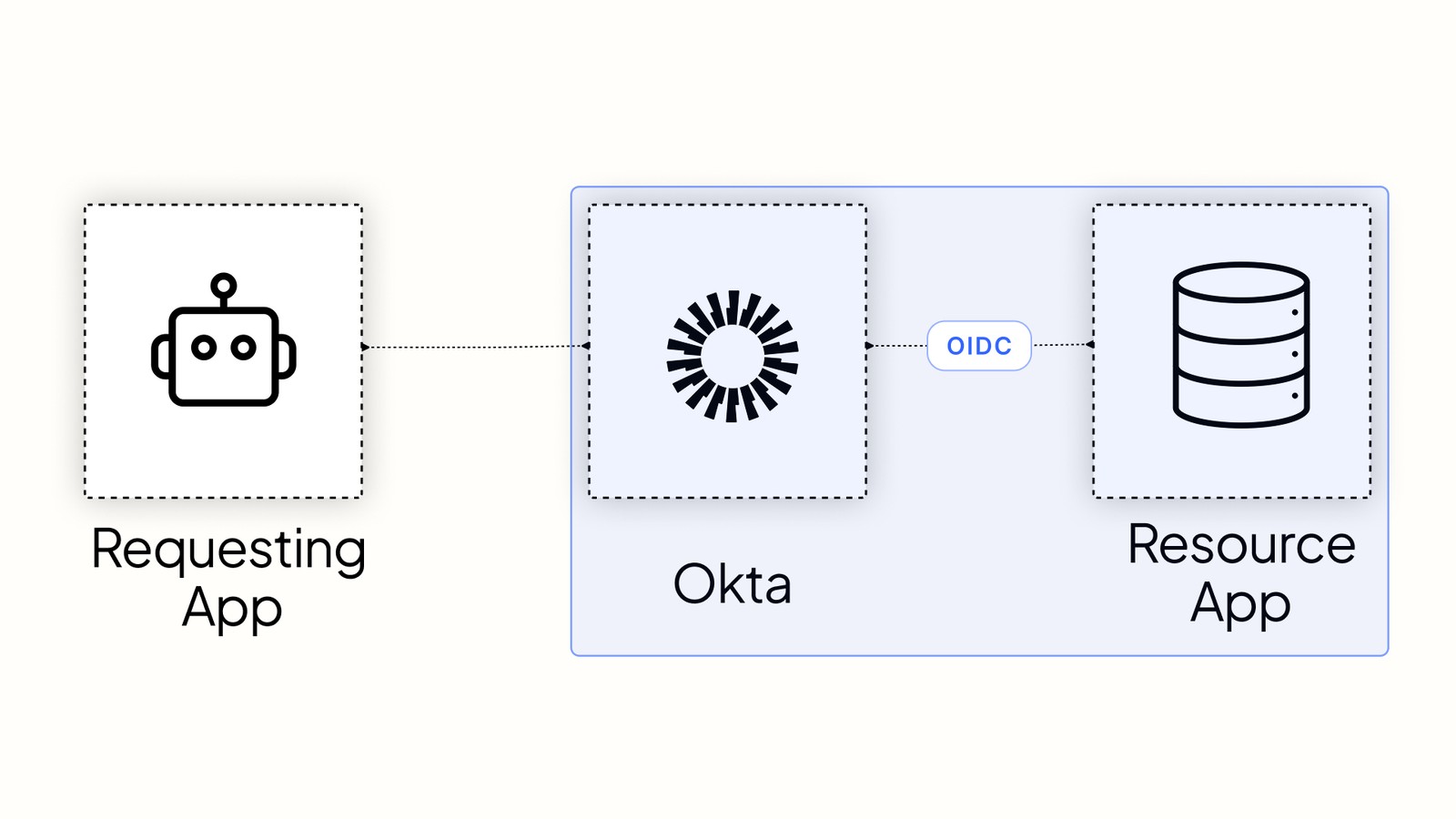
If you currently federate enterprise customers using OpenID Connect (OIDC) and want to allow applications to access your API on behalf of those users, this Cross App Access (XAA) guide is for you.
The Identity Assertion Authorization Grant specification, the basis of XAA, was designed with OIDC in mind. Your authorization server already trusts the customer’s IdP for single sign-on (SSO), and XAA reuses that same trust for API access. This guide details what you need to support, how to validate the grant, and how to resolve the user at your resource authorization server.
Table of Contents
- How XAA in OIDC works
- Analyzing the ID-JAG claims
- XAA implementation checklist for OIDC-federated applications
- Making cross-application requests from your OIDC app securely
- Configure your XAA OIDC Resource app in Okta
- Verify your Okta XAA setup on xaa.dev
- Takeaways for implementors who also have SAML apps
- Learn more about Cross App Access, OIDC, and OAuth 2.0
How XAA in OIDC works
When an agent (like one running in Claude) needs API access, it presents an Identity Assertion Authorization Grant (ID-JAG). The ID-JAG is a short-lived JSON Web Token (JWT) issued by the customer’s Identity Provider (IdP) for your authorization server. Your resource server accepts the token, identifies the user, and issues your own access token, all while leaving the customer’s existing OIDC integration untouched.
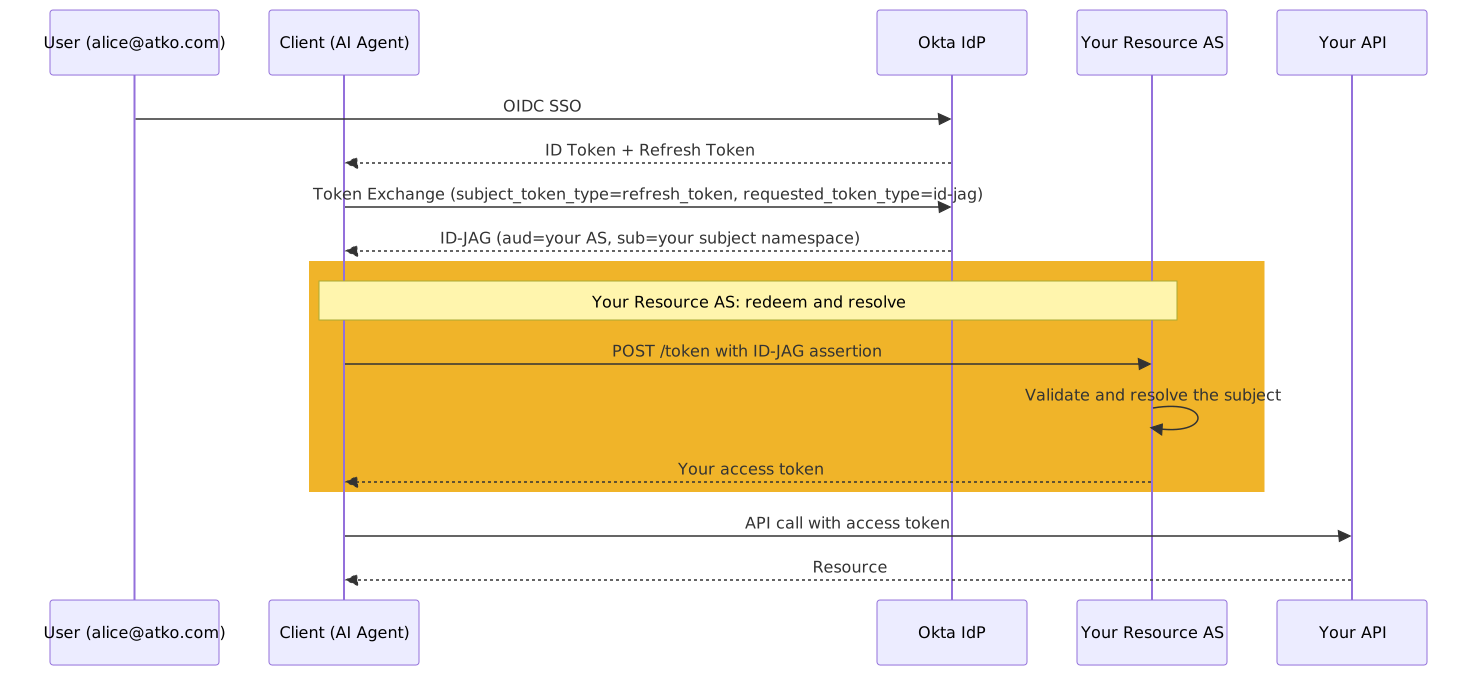
The sequence diagram shown below describes the OIDC XAA flow. Notice that the OIDC SSO flow stays the same; the only change is the section highlighted with the comment “Your Resource Authorization Server (AS): redeem and resolve”. You’ll make a POST request to your resource’s authorization server with the ID-JAG, resolve the subject, and return an access token that you’ll use for resource requests.
⚠️ Note
You are not participating in the client’s SSO here. The only artifact crossing from the IdP to your domain is the ID-JAG. Everything upstream, including authentication, ID token issuance, and the token exchange, happens without you. Your responsibility is to validate the ID-JAG, redeem it for an access token, and resolve the user from the claims.
Analyzing the ID-JAG claims
When you decode the ID-JAG, you’ll see claims in the header and payload that impact how you process the access request:
// header
{
  "typ": "oauth-id-jag+jwt",
  ...
}

// payload
{
  "iss": "https://atko.okta.com",
  "sub": "00u1a2b3c4D5e6F7g8h9",
  "aud": "https://auth.chat.example",
  "client_id": "0oa8claudeMcpAtYourAS",
  "email": "alice@atko.com",
  "scope": "chat:read chat:write",
  "jti": "id-jag-7f3c9a21b8",
  ...
}
Focus on these key claims noted in the decoded ID-JAG payload:
iss+sub: Together, these are the primary key for user resolution. Neither one is unique on its ownaud: Indicates the issuer identifier for your resource authorization serverclient_id: This is the client’s ID at your resource authorization server, which might differ from its ID at the IdPemail: Recommended by the specification for just-in-time provisioning if the user has not yet signed injti: The unique ID for this ID-JAG JWT, as required by JWT conventions
Three optional claims matter if you run a multi-tenant service: the tenant claim scopes the subject when the IdP itself is multi-tenant, aud_tenant scopes the subject when your resource authorization server is multi-tenant, and aud_sub carries the identifier that the IdP believes you already have for this user.
XAA implementation checklist for OIDC-federated applications
To fully support Cross App Access, implement these four steps in sequence:
- Mapping user identity from
issandsub - Validating the ID-JAG and resolving the user
- Issuing the access token
- Updating authorization server metadata
Mapping user identity from iss and sub
You already resolve users from the sub claim during SSO, so the ID-JAG uses the identifier you know. The sub claim alone is not the key, though.
A sub value is only unique when scoped with the issuer. Resolve on iss + sub together. If the IdP is multi-tenant, the scope is iss + tenant + sub, and you’ll need the tenant claim to disambiguate. Two customers on the same multi-tenant IdP can otherwise collide.
If the user hasn’t signed in to your app yet, there’s no local record to resolve. Use the email claim, or aud_sub when the IdP supplies it, to provision just in time. Treat email as a linking hint rather than a primary key. Email addresses get reassigned when employees leave, and iss + sub does not.
Validating the ID-JAG and resolving the user
The client posts the ID-JAG as a JWT authorization grant and authenticates with its credentials at your server. Below is an example HTTP request for requesting an access_token:
POST /oauth2/v1/token HTTP/1.1
Host: chat.example
Authorization: Basic <base64(client_id:client_secret)>
Content-Type: application/x-www-form-urlencoded
grant_type=urn:ietf:params:oauth:grant-type:jwt-bearer
&assertion=eyJ0eXAiOiJvYXV0aC1pZC1qYWcrand0...
Before processing, you must bind the ID-JAG’s iss to a registered IdP connection to prevent forgery.
If you verify the signature before checking the issuer binding, an attacker could stand up their own IdP, sign a token, and present a sub belonging to one of your users.
Always resolve the connection from the iss first, then verify the signature against that connection’s key. You’ll compare this using the JSON Web Key Set (JWKS) metadata.
Below is the pseudocode for implementing the validation and resolving a user:
connections = {
  "https://atko.okta.com": {
    jwks:        "https://atko.okta.com/oauth2/v1/keys",
    multiTenant: false,
    allowJit:    true,
  },
}

redeem(idJag, authenticatedClient):
    // 1. Bind iss to a connection before trusting the signature.
    iss  = unverified_issuer(idJag)
    conn = connections[iss]
    if conn is none: reject "invalid_grant"

    // 2. Verify signature against the specific issuers JWKS.
    payload = verify_jwt(idJag, jwks = conn.jwks)
    if payload is invalid: reject "invalid_grant"

    // 3-5. Perform remaining checks.
    require payload.typ       == "oauth-id-jag+jwt"
    require payload.aud       == "resource_authorization_server_url"
    require payload.client_id == authenticatedClient.id

    user  = resolveSubject(payload, conn)
    scope = applyScopePolicy(user, payload.scope)
    return issueAccessToken(user, scope)

resolveSubject(payload, conn):
    require payload.sub
    if conn.multiTenant: require payload.tenant

    user = lookup_user_by_federated_id(payload.iss, payload.tenant, payload.sub)
    if user is none and conn.allowJit:
        user = provision_user(payload.iss, payload.tenant, payload.sub, payload.email)

    if user is none: reject "invalid_grant"
    return user
Issuing the access token
Once you resolve the user, issue an access_token scoped according to your local policy. Below is an example of an access_token returned after successfully validating the ID-JAG and resolving the user.
HTTP/1.1 200 OK
Content-Type: application/json;charset=UTF-8
Cache-Control: no-store

{
  "token_type": "Bearer",
  "access_token": "2YotnFZFEjr1zCsicMWpAA",
  "expires_in": 86400,
  "scope": "chat:read chat:write"
}
⚠️ Note
Do not issue a refresh token. If your authorization server issues a refresh token, the client has durable access to your resource server, and the IdP cannot revoke access.
The ID-JAG replaces the need for a refresh token. On access token expiry, the client resubmits the same ID-JAG to your token endpoint, and you mint a new access token against it. Only once the ID-JAG itself expires does the client return to the IdP for a new one.
Updating authorization server metadata
Clients locate your XAA support via your authorization server metadata (/.well-known/oauth-authorization-server). Ensure you include the supported fields:
{
  "issuer": "https://chat.example",
  "token_endpoint": "https://auth.chat.example/oauth2/v1/token",
  "grant_types_supported": [
    "urn:ietf:params:oauth:grant-type:jwt-bearer"
  ],
  "authorization_grant_profiles_supported": [
    "urn:ietf:params:oauth:grant-profile:id-jag"
  ]
}
Publish the profile identifier and nothing more. Don’t list the issuers you trust in public metadata, since that discloses your customer relationships. If clients need to check whether you accept a given issuer, put that check behind client authentication.
Making cross-application requests from your OIDC app securely
With these four steps complete, you’ve configured your OIDC application for Cross App Access. Agents can now authorize requests against your API using the federation you already run.
You can now use Okta to make cross-application requests with your OIDC app.
Before you configure anything, here’s who runs what in this walkthrough:
| Component | Role |
|---|---|
| Your resource server and API | Runs on your infrastructure. The service XAA protects. |
| Your resource authorization server (your resource AS) | Runs on your infrastructure. Mints and validates the access tokens your API accepts. |
| Your Okta org | The IdP. Authenticates users and issues the ID-JAG. |
| The Okta app integration representing your resource app | A registration in Okta, not a running service. Holds the XAA configuration Okta uses to mint ID-JAGs for your resource AS. |
| The Okta app integration representing the requesting app | A registration in Okta, not a running service. Lets users sign in to the AI agent and lets Okta issue ID-JAGs on its behalf. |
| xaa.dev | Plays the requesting app for this walkthrough, running against your resource server. |
xaa.dev drives the requesting side so you can verify the resource side, which is the only side you’re actually building.
Configure your XAA OIDC Resource app in Okta
This walkthrough tests an XAA implementation, it doesn’t build one. Before you continue, you’ll need already running:
- Your resource AS, with a reachable issuer URL and token endpoint
- The ability to register an OAuth client at your resource AS and issue it a client ID and secret, since the requesting app authenticates there at redemption
- The ID-JAG redemption logic from the checklist earlier in this post, implemented
- An API endpoint that accepts the access token your resource AS issues
If you haven’t built these yet, work through the checklist sections above first.
You’ll also need:
- An Okta Integrator Free Plan account. Sign up for a new account to test out the XAA feature
- xaa.dev to drive the requesting side while you test your resource server
See the guide’s prerequisites for AI agent-to-app XAA for the underlying Okta org requirements.
- Open the xaa.dev resource app tester and enter any validly formatted email address to establish a session
- In Your IdP’s issuer URL, enter your Okta org issuer URL. This is the IdP field, not the resource AS issuer URL field further down the panel. For example,
https://integrator-xxxxxx.okta.com - Copy the generated Sign-in redirect URI, for example
https://auth.resource.xaa.dev/api/federated-sso/callback/resapp-oidc-xxxxxxx. You’ll paste it into the requesting app integration in the next section - Leave the tab open. You’ll return to it after the Okta configuration is complete
Create the OIDC requesting app for testing
You’ll need a requesting app integration and a resource app integration set up in Okta. Create the requesting app integration by following the guide’s OIDC app creation steps, using these tutorial-specific values:
- App integration name: “Requesting App”
- Grant type: Authorization Code, plus Refresh Token — you’ll need it to request the ID-JAG
- Sign-in redirect URIs: the Sign-in redirect URI you copied from xaa.dev above
- Assignments: keep Skip group assignments for now
General configuration
Select the General tab and copy the Client ID and Client secret. Paste both into the requesting app fields at xaa.dev and save.
Assignments configuration
Assign your test user to the requesting app integration. See Assign an app integration to a user.
Note: The values here come from your Resource Authorization Server.
Create the OIDC resource app in Okta
Create the resource app integration the same way you created the requesting app integration, and use these tutorial-specific values:
- App integration name: “Resource App”
- Grant type: Authorization Code
- Sign-in redirect URIs: any valid placeholder URL. This app integration never performs an interactive login in this walkthrough; it only holds the Resource Server XAA configuration and the user assignment, and Okta requires the field to be non-empty. Don’t reuse the xaa.dev URI here
- Assignments: keep Skip group assignments for now
After creating the app integration, select the General tab to get the Client ID and Client secret. Use these credentials in your resource server.
Resource Server extra configuration
Enable Cross App Access (XAA) on the resource app integration from the Resource Server tab, and configure: Note: The values here come from your test Requestor SSO App on xaa.dev.
- Issuer URL: Your resource AS issuer URL, the issuer of the authorization server you run. Entering it here tells Okta which external server to mint ID-JAGs for; Okta doesn’t host this server. This value becomes the
audclaim in the ID-JAG and cannot change without deleting and resetting the connection. - Audience/tenant ID: This is optional and not needed for this walkthrough
⚠️ Note
This Issuer URL (your resource AS issuer URL) must exactly match the Resource AS issuer (ID-JAG audience) field you’ll enter on xaa.dev during verification. A mismatch still produces a correctly signed ID-JAG, but redemption fails the
audcheck, and that’s the hardest failure in this tutorial to diagnose.
Assignments configuration
Assign your test user to the resource app integration. See Assign an app integration to a user.
Register and configure the AI Agent in Okta
With your requesting app integration and resource app integration configured, register a new AI Agent in Okta. During registration, you’ll link your requesting app integration under User access and authentication, register the agent’s own OAuth client, and then connect the resource app integration as a Resource Connection.
Register the AI Agent and link your requesting app integration
Register the AI Agent and link its requesting app integration. Use these tutorial-specific values:
- Name: “Agent”
- Allow users to access this agent: Select an existing app, then choose “Requesting App”
- Add owners: assign your test user as an individual owner
This linked app integration is what your users sign in through to reach the agent: they authenticate against it, and the agent then acts on their behalf.
Connect the resource app integration
Add a resource connection to the AI agent. Use these tutorial-specific values:
- Application instance: “Resource App”
- AI agent’s client ID registered in this app: “this app” here means your resource AS, not the Okta app integration. Enter the client ID you issued to the AI agent when you registered it as an OAuth client at your resource AS. You perform that registration outside Okta, and the process varies by product
- Scopes: Allow any scope
Activate the AI Agent
Activating the linked requesting app integration usually activates the AI Agent. If the agent’s status is STAGED, activate it manually.
Once the AI Agent is active, the configuration is complete. Except for Machine access, all checkmarks on the agent configuration page must be green.
Verify your Okta XAA setup on xaa.dev
Open the AI Agent you created, then go to Client registration tab: You’ll see the agent uses the same credentials as the linked requesting app. We will use this client ID and secret to request an ID-JAG from the IdP.
In xaa.dev, enter the following values:
- Client ID: Use the values from the AI Agent’s client registration tab.
- Client Secret: Use the values from the AI Agent’s client registration tab.
- Resource AS issuer (ID-JAG audience): Use your resource AS issuer URL. This must exactly match the Issuer URL you set on the resource app integration’s Resource Server tab.
- Scopes: Enter the scopes you want to request for the access token. For example,
chat:read chat:write. - Press Save to store the values.
By this point, you’ll have every value from the checklist and your one-time Okta setup in place (AI Agent, owner, delegation, and resource connection), so we’ll add the values from Okta and the apps to walk through the flow step by step, one button per step.
Configure OIDC SSO
Press Start OIDC login at your IdP and complete the login in the pop-up.
When it closes, the step turns green and shows a ✓ Auto-discovered SSO endpoint, confirming that the tester resolved the real authorization and token endpoints from your org’s discovery document and returned an ID token and a refresh token.
Verify the refresh token exchange for an ID-JAG token
Press Exchange refresh token for ID-JAG. The tester posts the refresh token from sign-in to your IdP’s token endpoint and returns a decoded ID-JAG. Take a second to review it: aud should equal your resource authorization issuer, and sub should be the identifier for the user who logged in. A 200 OK indicates that the step succeeded.
Redeem the ID-JAG for an access token at the resource authorization server
- Fill in your resource AS token endpoint
- The client ID and secret you issued to the AI agent when you registered it as an OAuth client at your resource AS. This must be the same client ID you entered in the resource connection step, or redemption fails the
client_idcheck
Press Redeem (grant_type=jwt-bearer). If the request succeeds, you’ll receive a 200 OK response with an access token. Inspect the token in the Token tab to verify that the iss, aud, and scope claims match the values configured in your resource authorization server. This validation confirms that the authorization server accepted the ID-JAG and issued its own access token.
Call the resource API with the access token
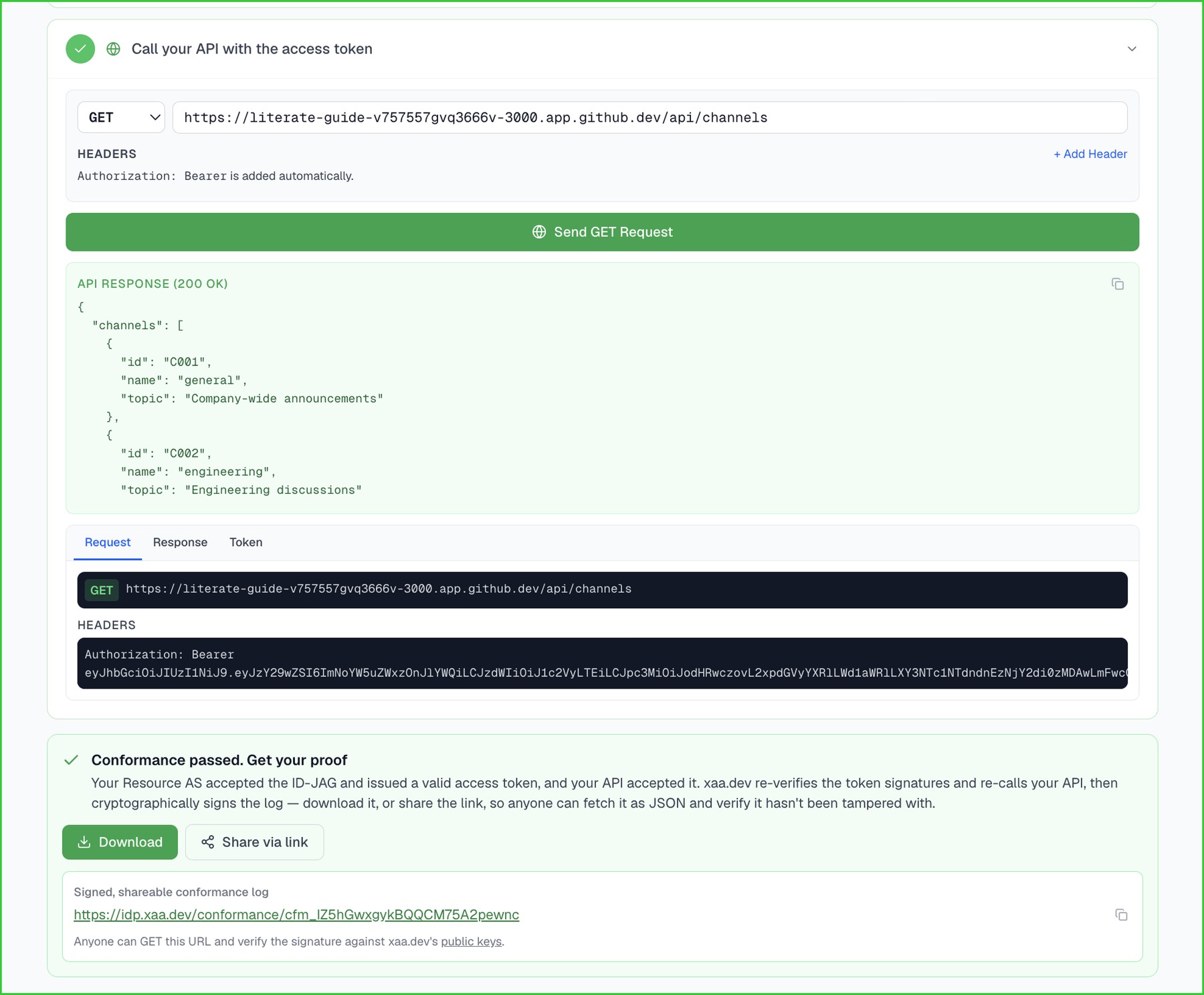
Select the request method and enter your API URL (xaa.dev adds the Authorization: Bearer header automatically, but you can add any other headers or a request body as needed), then press Send GET Request. A 200 response from your endpoint is the final proof: your API accepts the access token generated by the ID-JAG exchange.
Prove the XAA connection end-to-end
A green Conformance passed panel appears. Select Export conformance log (JSON) to download the test results. The export includes the signed ID-JAG, the access token returned by your resource authorization server, and the API response.
You can either download the log or have a URL to share with your IdP as proof that the Cross App Access integration works successfully.
Takeaways for implementors who also have SAML apps
If some of your enterprise customers federate over SAML instead, here’s what changes when you extend XAA to those connections:
- The subject arrives in a
sub_idclaim using thesaml-nameidformat, rather than insub - Match on every
saml-nameidmember (issuer+NameID+sp_name_qualifier), rather than onissandsub - Everything else, including token issuance rules and redemption checks, remains as is
Learn more about Cross App Access, OIDC, and OAuth 2.0
If this guide helped you implement Cross App Access with OIDC, explore these resources:
- 📘 Cross App Access Documentation: Official guides for configuring and managing Cross App Access in production.
- 🎙️ Developer Podcast on MCP and Cross App Access: Hear the backstory, use cases, and why this matters for developers.
- 📋 How to Build and List Secure Cross App Access (XAA) Connections on Okta Integration Network (OIN)
Identity 101:
- What’s the Difference Between OAuth, OpenID Connect, and SAML?
- What are SAML, OAuth, and OIDC?
- Why You Should Migrate to OAuth 2.0 From Static API Tokens
- How to Get Going with the On-Demand SaaS Apps Workshops
Follow us on LinkedIn and X, and subscribe to our YouTube channel. Leave a comment below if you have any questions!
Sohail is a Senior Developer Advocate at Okta with roots in mobile app development and hands-on experience designing, building, and publishing APIs. Now, he helps developers secure their apps by turning complex OAuth and API topics into clear, actionable guides. When he's not coding or speaking at conferences, you'll find him on a quest for the perfect plate of biryani.
Okta Developer Blog Comment Policy
We welcome relevant and respectful comments. Off-topic comments may be removed.