
On this page
Manage orgs with Okta Aerial
This guide explains how to add orgs to your Okta Aerial account and manage Aerial org settings.
Note: The
Platform - Multi-org DeploymentorSandbox - Previewproducts are required to have access to Okta Aerial. Contact Okta customer support for access.
Learning outcomes
- Authenticate an Aerial API client with Okta Aerial.
- Add an org to your Aerial account.
- Enable products in the Aerial linked org.
- Configure the Aerial org.
What you need
- An Okta Aerial account (provided by your account team)
- A parent org (provided by your account team)
- Access to the Org creator API
- Access to the Okta Aerial API
Sample code
Use the Okta Aerial API (opens new window)
About Okta Aerial
Okta Aerial is an administration service that enables multi-org management. Use the Aerial API to:
- Add orgs to the Aerial account.
- Activate and deactivate orgs.
- View subscribed products.
- Enable products in specific orgs.
Key terms
Okta Aerial introduces a few terms to the Okta ecosystem:
| Term | Definition |
|---|---|
| Aerial account | The management layer around multiple orgs within Okta. The Aerial account resides outside your orgs and can manage any production or preview org linked to the Aerial account. Each Aerial account has a dedicated Aerial org. |
| Aerial org | The org used to register API clients and acts as an authorization server for all API calls made in the associated Aerial account. The Aerial org also contains all System Log events associated with Okta Aerial actions. |
| Products | Okta-determined sets of features. With the Okta Aerial API, you can view subscribed products for an Aerial account and enable a subset of products to orgs. |
| Features | Distinct pieces of functionality. Features are bundled within products but may also be offered separately, for example, Early Access features. |
Aerial sandbox and production environments
Okta provides the following environments to use with your Aerial account:
Sandbox: Only connected to OP3 cells. Use for scale testing and repetitive testing.
https://aerial-sandbox.okta.comProduction: Connected to
okta.comandokta.preview.com. Use to explore the Aerial API or test net-new development. Link a preview org to your production instance.https://aerial-apac.okta.com
Use either the sandbox or production URL for the placeholder {aerialDomain} in your API calls.
See Introduction to the Okta Aerial API (opens new window).
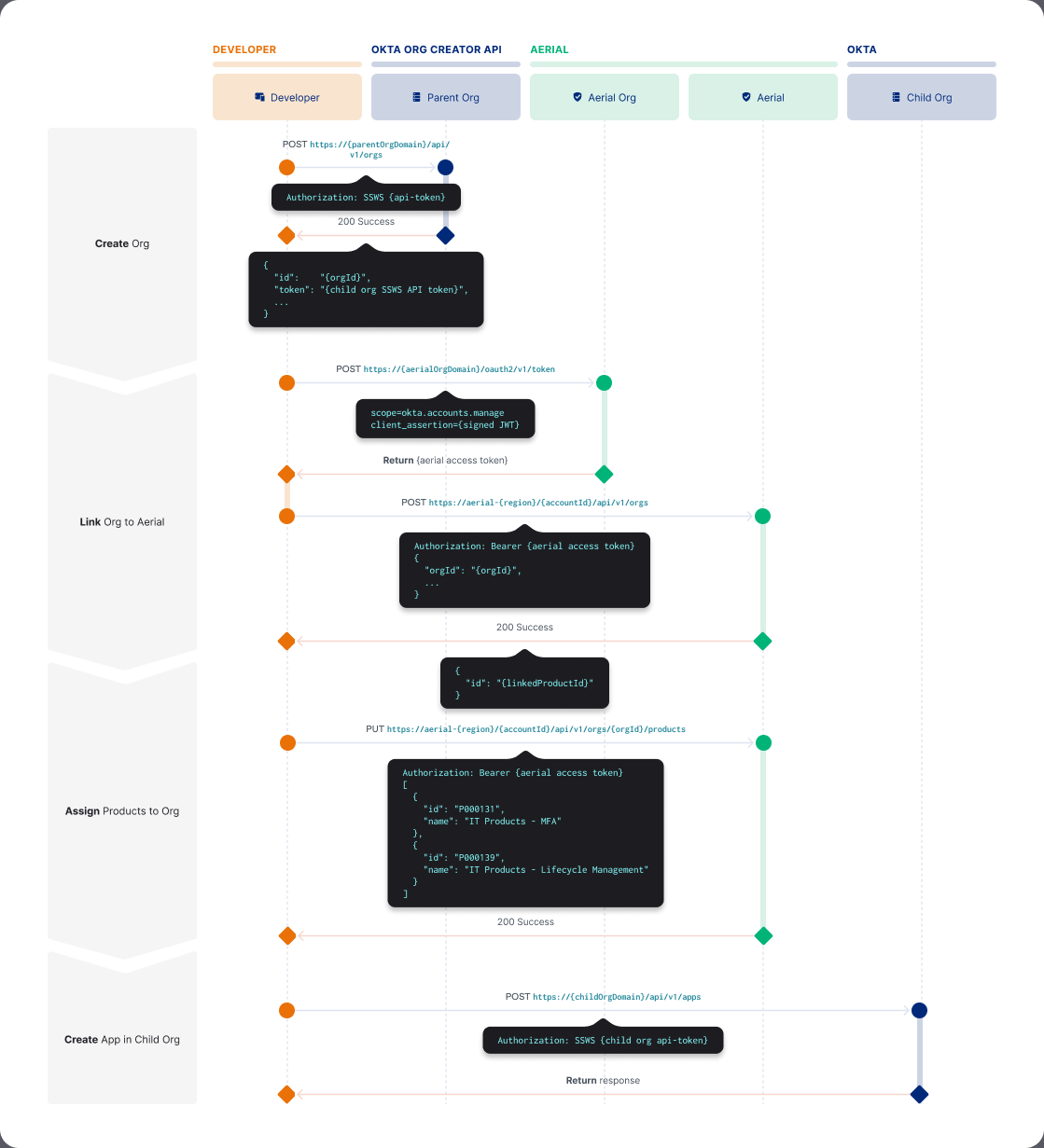
Create and configure new orgs in your Aerial account
- Authenticate with Okta Aerial: Configure an API client in the Aerial org to call the Okta Aerial API.
- Create and configure a child org: Create a child org based on the parent org using the Org creator API.
- Add the org to the Aerial account: Link the org to the Aerial account using the Aerial API.
- Enable products in the org: Enable products in the Org using the Aerial API.
- Configure the org: Configure the org using Okta objects.
You can also Deactivate an org.
Register an Okta Aerial API client
Use an Aerial API client to add orgs to the Aerial account and to modify products.
Only a super admin in your Aerial org can grant scopes to the client. Configure scopes once per API client.
In your Aerial org, create an API client:
- Go to Applications > Applications in the Admin Console, and then click Create App Integration.
- Select API Services as the sign-in method, and click Next.
- Enter a name for your client and click Save.
Configure the signing keys for the client:
- In the Client Credentials section of the General tab, click Edit to change the client authentication method.
- Select Public key/Private key as the client authentication method.
- Choose either Save keys in Okta or Use a URL to fetch keys dynamically:
- If you want to save keys in Okta, click Add key.
- If you want to use a URL to fetch keys dynamically, you need to provide a URL that returns the JWKS documents. See Client secret rotation and key management.
Grant scopes to the client:
- Select the Okta API Scopes tab.
- To access Okta Aerial, click Grant on the following scopes:
okta.accounts.manage: read/write operationsokta.accounts.read: read-only operations
Authenticate with Okta Aerial
To authenticate with Okta Aerial, a client obtains an access token from the Aerial org. See Implement OAuth for Okta with a service app.
Note: Demonstrating Proof-of-Possession (DPoP) (opens new window) is supported but not required. See Configure OAuth 2.0 Demonstrating Proof-of-Possession (opens new window).
Create a JWT assertion and use it to make a token request to the Aerial org.
curl --location --request POST 'https://${aerialOrgDomain}/oauth2/v1/token' \
    -H 'Accept: application/json' \
    -H 'Content-Type: application/x-www-form-urlencoded' \
    --data-urlencode 'grant_type=client_credentials' \
    --data-urlencode 'scope=okta.accounts.manage' \
    --data-urlencode 'client_assertion_type=urn:ietf:params:oauth:client-assertion-type:jwt-bearer' \
    --data-urlencode 'client_assertion=${jwt_assertion}'
The Aerial org returns the access token.
Add the access token to the authorization header of Okta Aerial API requests:
Authorization: Bearer ${access_token}
Create a child org
The Org creator API creates a child org of the parent org. This creates a child org with features synced from the parent org. In the API response, you receive an API token tied to the super admin. Use the token to provision more resources on the child org like policies, apps, or groups.
The API token isn't the token that's used for Okta Aerial. The token that the Org creator API creates has the same automatic expiration and deactivation as API tokens created using the Admin Console.
However, the Org creator API token doesn’t appear in the Admin Console. You can’t use the Admin Console to revoke the token. If you deactivate the super admin (the first admin created during org creation), the token is deactivated.
If you lose this token or it expires, you must sign in to the Admin Console as a super admin and create a token.
Note: Before creating your first child org and linking to Aerial, ensure that you give consent to the parent org with the Grant Okta Aerial access to your Org API (opens new window).
Add the org to the Aerial account
To enable products in an org, add the org to your Aerial account. You can only add orgs to your Aerial account that are associated with your Okta contracts.
Link the org to Okta Aerial by sending a POST request to the /api/v1/orgs endpoint of the Aerial API. The response contains the Org object including the orgId. Use the orgId to enable products.
Use orgId
POST https://{aerialDomain}/{accountId}/api/v1/orgs
Authorization: Bearer ${access_token}

{
  "orgId": "00oy0itaI2Yi7XGGE0g3",
  "cell": "OK1"
}
Use domain
POST https://{aerialDomain}/{accountId}/api/v1/orgs
Authorization: Bearer ${access_token}

{
  "domain": "${yourOktaDomain}",
  "cell": "OK1"
}
Response example
The ID of this record is the orgId. Use it in the URL for enabling products:
{
  "accountId": "string",
  "name": "string",
  "region": "string",
  "cell": "string",
  "domain": "string",
  "status": "string",
  "createdDate": "string",
  "createdBy": "string",
  "id": "string"
}
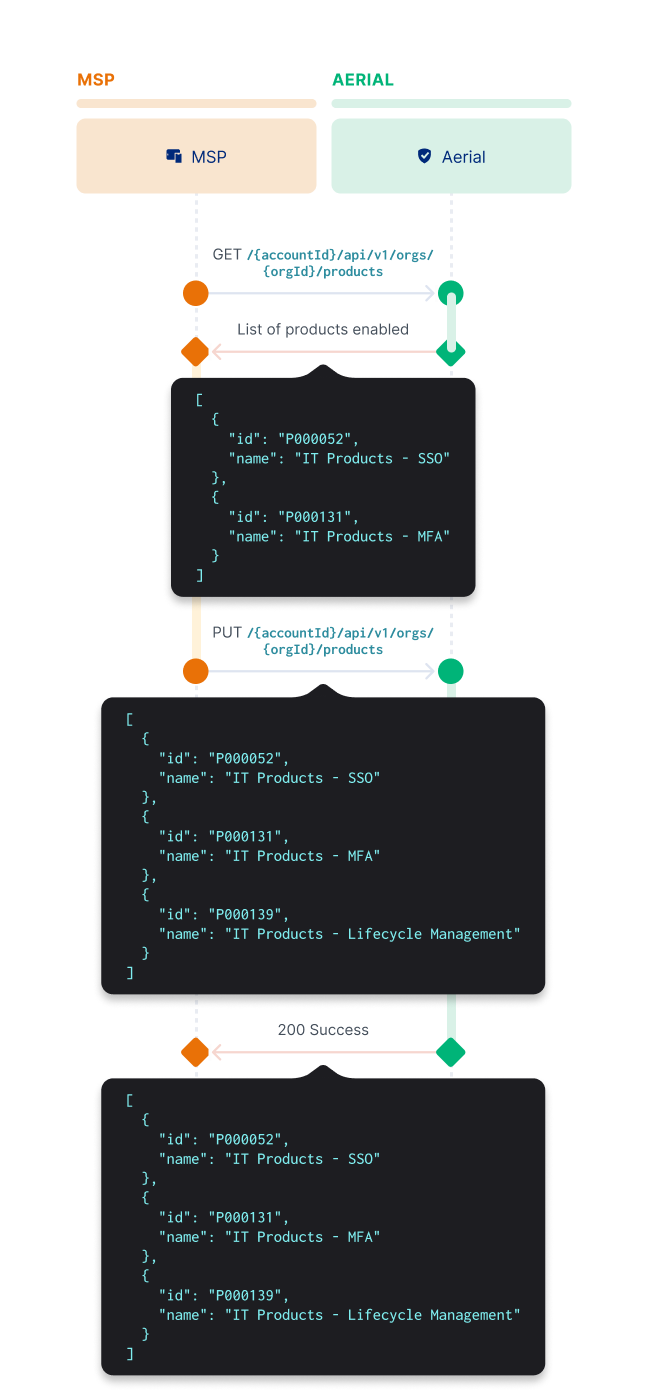
Enable products in the org
PUT https://{aerialDomain}/{accountId}/api/v1/orgs/{orgId}/products
Include the products that you want to enable in an array in the request body.
Any already-enabled products not found in the array of product IDs are disabled from the org. See List all enabled Products for an Org (opens new window).
Note: Since Okta ignores the
nameproperty, you can include it to simplify the client implementation.
Request and response examples
The request and response are the same:
[
  {
    "id": "P000052",
    "name": "IT Products - SSO"
  },
  {
    "id": "P000139",
    "name": "IT Products - MFA"
  },
  {
    "id": "P000131",
    "name": "IT Products - Lifecycle Management with 1 OIN App"
  }
]
Configure the org
To pre-configure groups, apps, and policies in each org, the API client needs the following:
- The domain of the org
- The API token returned by the Org creator API
You can also use OAuth 2.0 to interact with Okta APIs. See Implement OAuth for Okta (opens new window).
Request example
The following example calls the Apps API (opens new window). See Okta Admin Management (opens new window) for more Okta APIs.
curl --location --request POST 'https://${newOrgDomain}/api/v1/apps \
-H "Accept: application/json" \
-H "Content-Type: application/json" \
-H "Authorization: SSWS ${api_token}" \
-d '{
  "name": "bookmark",
  "label": "Sample Bookmark App",
  "signOnMode": "BOOKMARK",
  "settings": {
    "app": {
      "requestIntegration": false,
      "url": "https://example.com/bookmark.htm"
    }
  }
}'
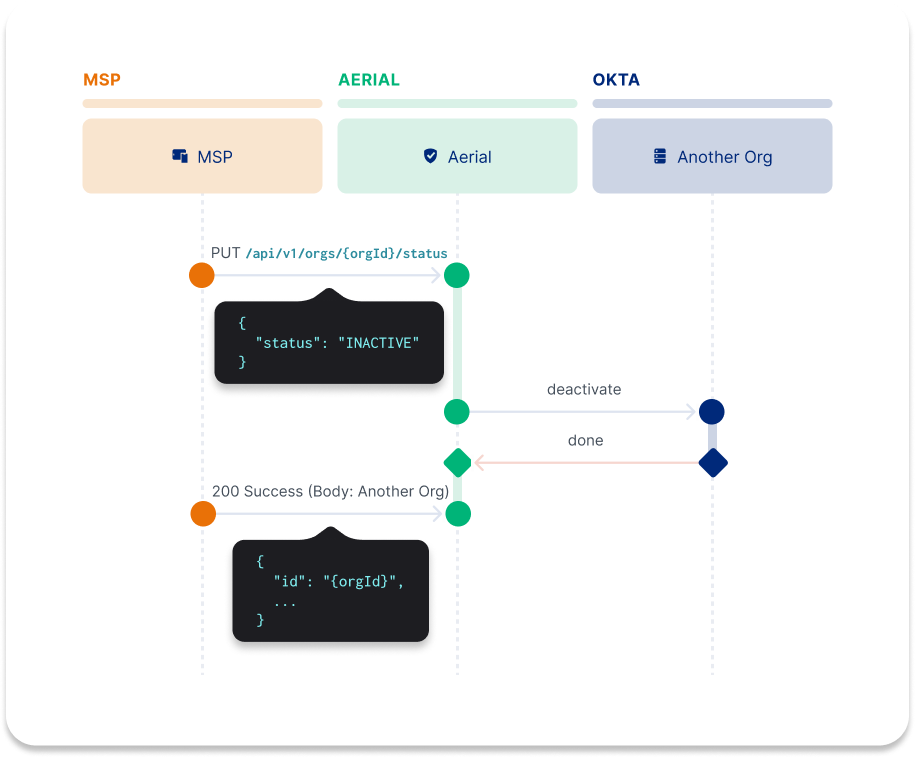
Deactivate an org
PUT https://{aerialDomain}/{accountId}/api/v1/orgs/{orgId}/status
Deactivate an org by calling the /status endpoint. Deactivated orgs don’t count toward billing. Users in the org can’t use Okta services or sign in to Okta.
Request example
{
   "status": "INACTIVE"
}
Response example
{
  "id": "00o133mJ27DoonJz50g4",
  "status": "INACTIVE",
  ...
}
